
20 things to say to the AI edit assistant (copy, paste, done)
Last updated: 2026-11-12
Short version — the AI gets it right the first time when you say where and what, one change at a time. Copy any of the 20 requests below, swap what is in [brackets] for your own details, paste it into the “AI” tab in the editor's right column and click “Ask AI”. It shows “Proposed changes” first, and nothing enters your draft until you click “Apply”.
At a glance
- Time needed
- About 5 min
- Plan required
- Free plan
- Coding knowledge
- None
- Where to do it
- Editor
Step by step
- 1
One change at a time, and name the part
The AI changes only what you ask, as little as possible. So the more clearly you say where and into what, the more often it lands the first time. If you click an element on the page first, even “this heading” is enough to point at it. Keep one job per request.
What to say to the AI · vague vs. works✗ Vague Make it look nicer — the AI can't know what “nicer” means to you✓ Specific Change the first-screen heading to “Beans roasted by hand every morning” and make it one size bigger✗ Everything at once Change the colors, shorten the text and build a new menu page✓ One at a time Change only the button color to dark brown. Don't touch any other color✓ Name the part Move the “Reviews” section directly below the “Menu” section - 2
Copy six wording and layout requests
Swap what is in [brackets] for your own details. One line is one request. A request that only asks a question, like number 3, doesn't change your draft — you get “This is an answer only — your draft wasn't changed.” Number 5 adds a new section, so it also asks for the colors to match the sections around it.
AI requests 1 · wording and layout# Wording and tone1. Change the first-screen heading to a short, concrete line like [Beans roasted by hand every morning]. Don't touch anything else.2. Rewrite the intro in a friendly but not casual tone. Keep every number and fact exactly as it is.3. Find clichés like “best service” on this page and just list them for me. Don't change anything.# Layout and sections4. Move the “Reviews” section directly below the “Menu” section.5. Add a section at the end of the page, before the footer, showing opening hours and days closed. Use the same colors as the section above.6. Add an FAQ section with three questions — [how to book, parking, dogs allowed] — and for each answer just write “Add the answer here”. - 3
Copy seven color, mobile, button and form requests
For mobile, look at the “Mobile” tab first to see what is off, then describe that exact symptom. To change the colors and font of the whole site at once, “Site colors & font” is quicker. Apply one request and check it before you send the next.
AI requests 2 · colors, mobile, buttons# Colors and fonts7. Change only the button color to [the dark brown from my logo]. Don't touch any other color.8. Change only the heading font to a serif style and leave the body text as it is.# Mobile9. On a phone, the top menu breaks onto two lines — make it one line. Leave the desktop layout alone.10. On a phone, make the body text a bit bigger with more space between lines, and make the buttons easy to tap with a thumb.# Buttons and forms11. Make every first-screen button say [Book a table] and make it jump to the inquiry form section.12. Turn the phone number into a link so tapping it starts a call.13. Add a small line right above the inquiry form: [We usually reply within a day]. - 4
Copy seven search, multi-page and translation requests
Don't ask the AI for the search title and description — write those in “Settings” › “Site info”, because what you type there is used ahead of the description inside the page. Ask the AI for page text and photo descriptions instead. For 16–20, which create new pages, switch “Edit target” to “Whole site” before you send.
AI requests 3 · search, multi-page, translation# Text that search can read14. Rewrite the first sentence of the intro so [your neighborhood] and [brunch café] appear naturally.15. Write alt text for every photo: one short sentence describing what is in it.# Multi-page (Edit target: Whole site)16. Create a new “Find us” page: address, a spot for a map, a box for transit and parking notes, then a contact button. Add a link to it in the top menu.17. Add a “Book” link to the top menu on every page, in the same position.# Translation18. Make a new page that is this page translated into Spanish. Keep the business name, address and prices as they are, and don't touch the original page.19. Add an “Español” link at the top of the English page and an “English” link at the top of the Spanish page.20. Find sentences in the translated page that read like word-for-word translation and smooth them into natural wording. - 5
Check “Proposed changes”, then click “Apply”
The AI doesn't edit right away — it shows “Proposed changes” first. Click “Apply” if it's right, or “Cancel” and your draft stays as it was. Even after applying, the change only lives in the draft, so check the “Mobile” tab and then click “Publish”. If you don't like a result, click “Undo this change” on its bubble, and remember that it also removes the changes made after it.
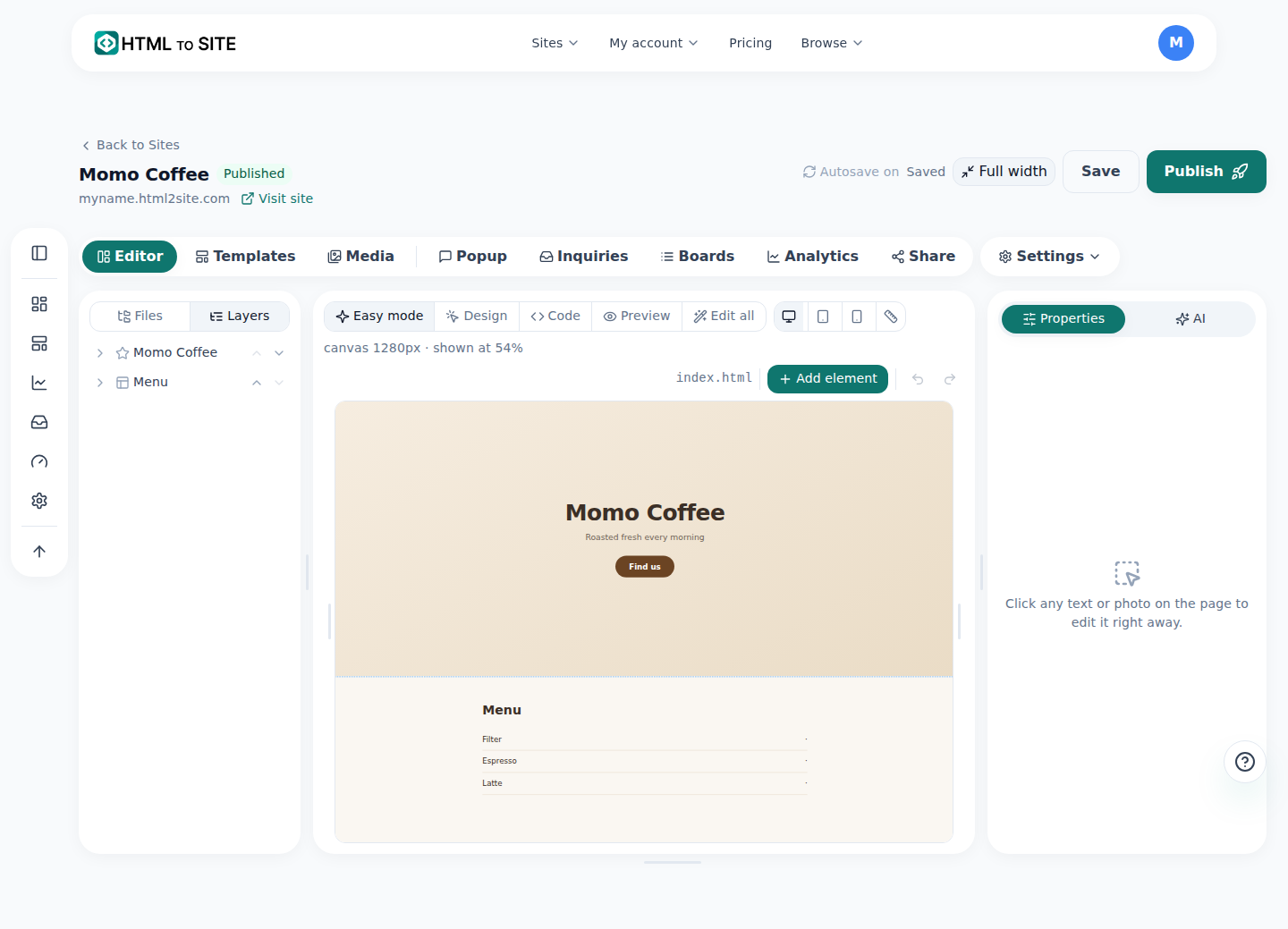
Paste a request into the “AI” tab on the right, and this canvas is what changes.
Frequently asked questions
What if the AI makes up opening hours or prices?
The AI knows nothing about your business beyond what you tell it. When you change hours, prices or an address, type the value yourself (“Mon–Fri, 10 am–8 pm”), and read the numbers in “Proposed changes” before you apply. Requests like number 6, which leave answers blank for you to fill in, are the safe kind.
Can I ask for several things in one request?
You can, but one at a time is more accurate. “Undo this change” also undoes everything after it, so apply one, check it, then send the next.
Can I ask the AI to change my photos?
Change photos yourself: click a photo on the page and use “Replace photo”. Use the AI for photo descriptions (number 15) or for changing where the photos sit on the page.
Can I make these requests in another language?
Yes. Write the request in whatever language is comfortable, and put the names you want changed in quotation marks exactly as they appear on screen.
Is AI editing free?
Yes — the free plan includes a monthly AI allowance. A request that fixes one line of text costs little, and one that rewrites a whole page costs more. When it runs out, upgrade to a paid plan first — top-up packs are available only on paid plans.
Read next
- The editor's AI edit assistant: describe it, and it edits the code How the editor's AI edit assistant works — describe changes in plain language, click to point, publish to go live, and how revert really works (English)
- A small business website, free: pick a template, edit it by asking, publish How to build a small business website for free — pick a template, edit on screen or with AI, inquiry form, publish, own domain (English)
- Check how your site looks on a phone — and fix it How to check how a website looks on a phone in the editor and in template previews, and ask the AI to fix what looks off (English)
- Get your site found — by search engines and AI answers alike How to get a published site found by search engines and AI answers (AEO) — from site settings to structured data (English)
Trying it is faster than reading about it — create your site now, free.