
Adding multiple pages to your site
Last updated: 2026-10-12
Short version — multi-page sites work **on the free plan**. Put about.html or menu.html next to index.html and each file becomes a page. Image and font uploads work on free too, and the real ceiling is your account's storage, not a page count.
At a glance
- Time needed
- About 5 min
- Plan required
- Free plan
- Coding knowledge
- None
- Where to do it
- Editor
Step by step
- 1
Multiple pages work from the free plan
Every site starts as a single index.html, but it doesn't have to stop there. Adding sub-pages like about.html or menu.html is open on the free plan. So is uploading a multi-page site you already built — “put the site you already have online” is what this product is for, so we don't put a plan in front of it.
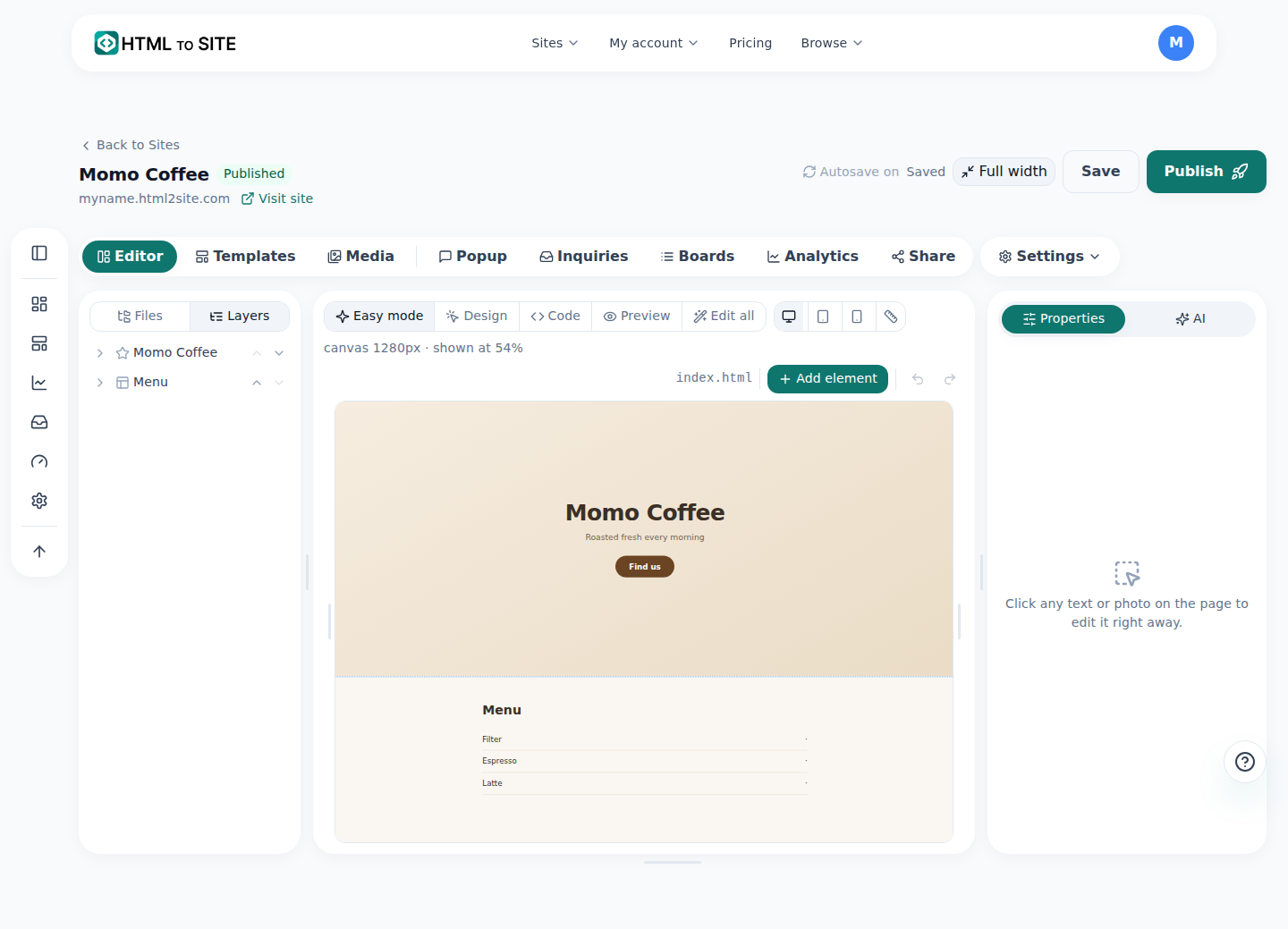
Add a file and it joins the list on the left; each file becomes a page. - 2
Images and fonts upload in the same place
“Multiple files” and “uploading images” are separate features, but both are open on the free plan today. That means a multi-page site with real photos and custom fonts runs on free. Assets live in the same file list as your code.
Plan comparison › File uploadsImage & font uploads Available from freeMultiple HTML files (sub-pages) Available from free - 3
Add pages from the editor's Pages list
Open the “Editor” and you'll see the “Pages” list on the left. Click the + button at the top of the list (“Add — new page · upload”), choose “New blank page,” and type a name with an extension, like about.html. For a site like Momo Coffee, keep index.html as your home page and add about.html and menu.html alongside it. Names can't contain spaces or a parent-folder path (../), and index.html itself is already reserved as the main page, so you can't recreate it under that name.
Momo Coffee · Pages Copyindex.htmlabout.html ← new pagemenu.html ← new page - 4
The ceiling is storage, not a page count
Nothing counts how many pages a site may have. What plans differ on is the storage your account uses and how many sites you keep. So there's no reason to cram content into one file to save pages — uploading full-size photos will reach the ceiling far sooner. Check the pricing page (/pricing) for exact numbers.
What actually limits youNumber of pages (HTML files) Not countedWhat plans differ on Account storage · number of sitesExact numbers Pricing page (/pricing)
Frequently asked questions
Can I add pages on the free plan?
Yes. Multi-page sites can be built and published on the free plan. On the editor's Pages list, click +, choose “New blank page,” type a name like about.html, and the new page is created right there.
Can I upload a multi-page site I already built?
Yes. However many pages it has, it uploads as-is. What the free plan limits is your account's storage and how many sites you keep — not the page count.
Can I upload images on the free plan?
Yes — image and font uploads work on free as well. A multi-page site with real photos and custom fonts runs on the free plan.
How many files can I have?
There's no limit that counts files. Your account's total storage is the real ceiling, and that number lives on the pricing page (/pricing).
Where do I add a page?
On the editor's Pages list, click the + button at the top and choose “New blank page.” Type a name with an extension, like about.html, and the new page is created right there.
Read next
- Managing your sites — folders, rename, delete & recovery How to organize sites into folders, rename them, and undo a deletion within 7 days from the /sites dashboard (English)
- Show your own page on URLs that don't exist How to set a published page as your site's custom 404 — no redirect, free on every plan (English)
- Restrict access to one page (page lock) How to restrict access to a specific page with Page lock in the editor's Settings — it's an access gate at serve time, not file encryption, available from Plus (English)
- You already have an HTML file. Here's how to put it online. Step-by-step guide to publishing an existing HTML file on a real address for free, no server needed (English)
Trying it is faster than reading about it — create your site now, free.