
Your site is yours — export it and move it elsewhere
Last updated: 2026-11-19
Short version — on “My sites”, open the ⋯ button on a site card and choose “Download” to get every file of the site as one ZIP, even on the free plan. The files are plain HTML, CSS, and images, so they open on other hosting too, but features MakeLayer's servers handled for you, like contact forms, don't travel inside the file.
At a glance
- Time needed
- About 3 min
- Plan required
- Free plan
- Coding knowledge
- None
- Where to do it
- My sites
Step by step
- 1
Open the ⋯ menu on a site card and choose “Download”
On “My sites”, press the ⋯ button on the Momo Coffee card and pick “Download”. If the site is already published, you then choose between “Working copy (ZIP)” and “Published site (ZIP)”. The first is what's in the editor right now, including edits you haven't published yet; the second is what visitors see today. A site that hasn't been published downloads its working copy straight away. Bigger sites show a notice while the file is prepared and take a little longer.
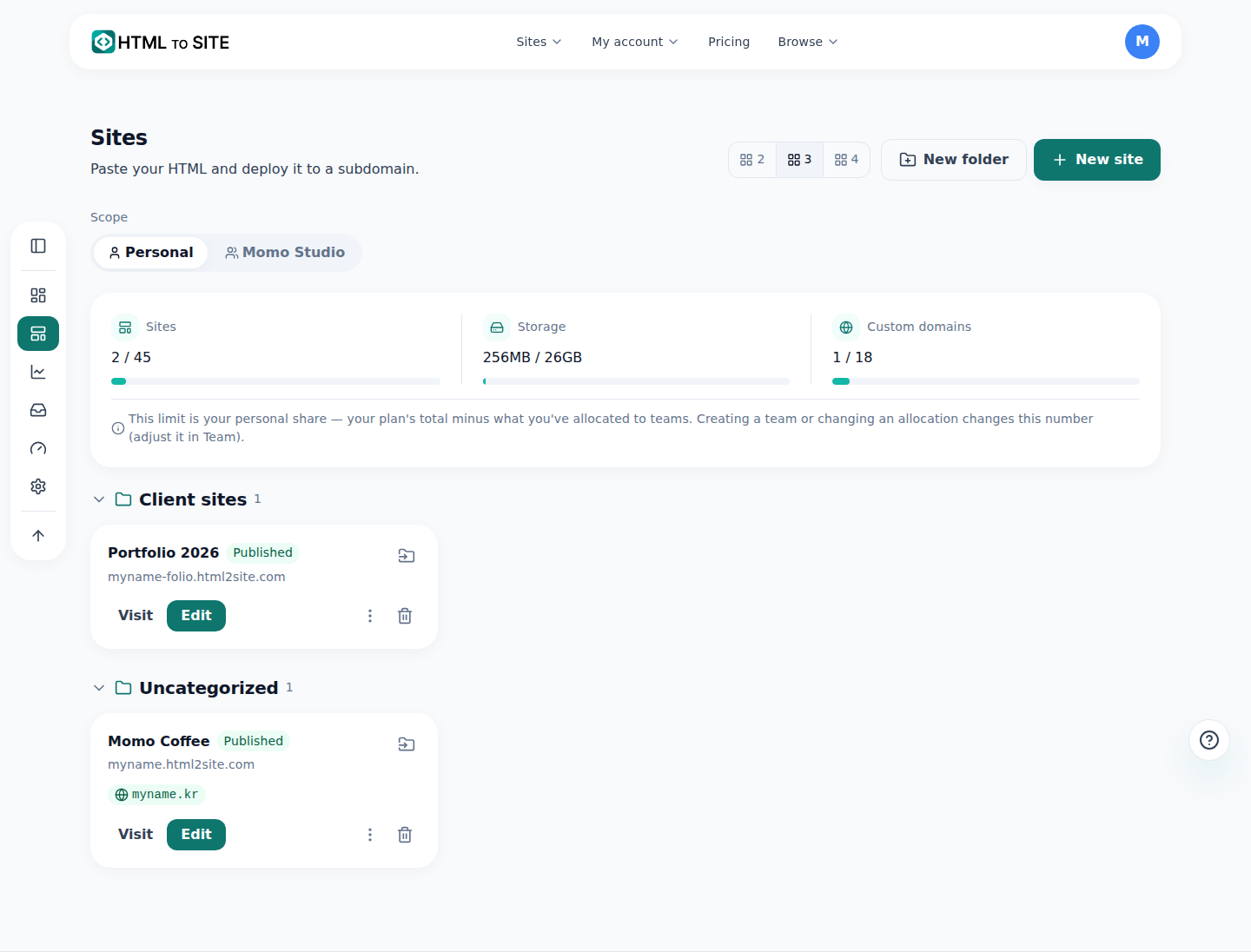
“Download” lives inside the ⋯ button at the top right of each card. - 2
Unzip it and open index.html to check
The ZIP holds your home page, other pages, and images in the same folder layout you saw in the editor. Unzip it, open index.html to see the site, and skim that every page and image made it. Because these are static HTML files, they open from your own computer or from other hosting. Contact forms, boards, bookings, and quotes are different: MakeLayer's servers handled those, and a server isn't inside the file, so you'd need to set up that part separately wherever you move.
Downloaded ZIP › What to check · Momo CoffeeIncluded Home page, other pages, images — every site fileOpens as-is Open index.html on your computer or other hostingDoesn't come along What MakeLayer's servers did: contact forms, boards, bookings, quotes - 3
Need an earlier look? Restore it from Versions
In the editor, open “Settings” › “Versions” to see the versions saved automatically when you publish and once a day. Pick one and press “Restore this version” to bring your site files back to that state. The free plan relies on the automatic ones; saving a version yourself with “Save this version” starts on paid plans. Automatic versions are cleared after their retention period, so download a ZIP of any look you want to keep for good.
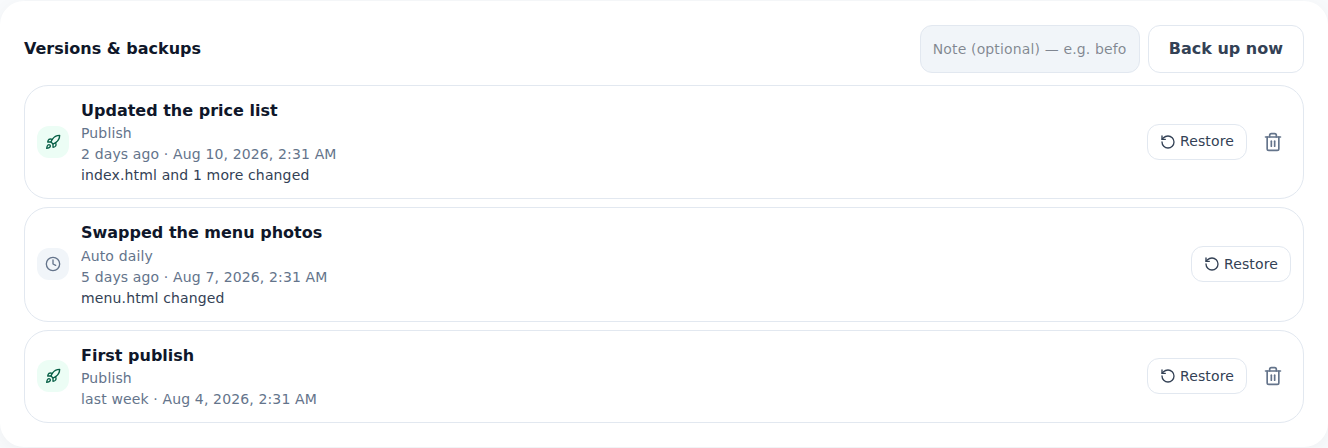
Browse the versions saved at publish time and daily, then restore the one you want. - 4
Handing the site to someone else? Transfer ownership
To pass the site itself to another person or to your team, open the card's ⋯ › “Manage site” › “Transfer / move ownership”, enter the recipient's email, and press “Start transfer”. Both sides confirm with an emailed code, and a transfer between people can be undone for 24 hours after final approval. If the recipient's plan can't handle what the site uses, the transfer is blocked.
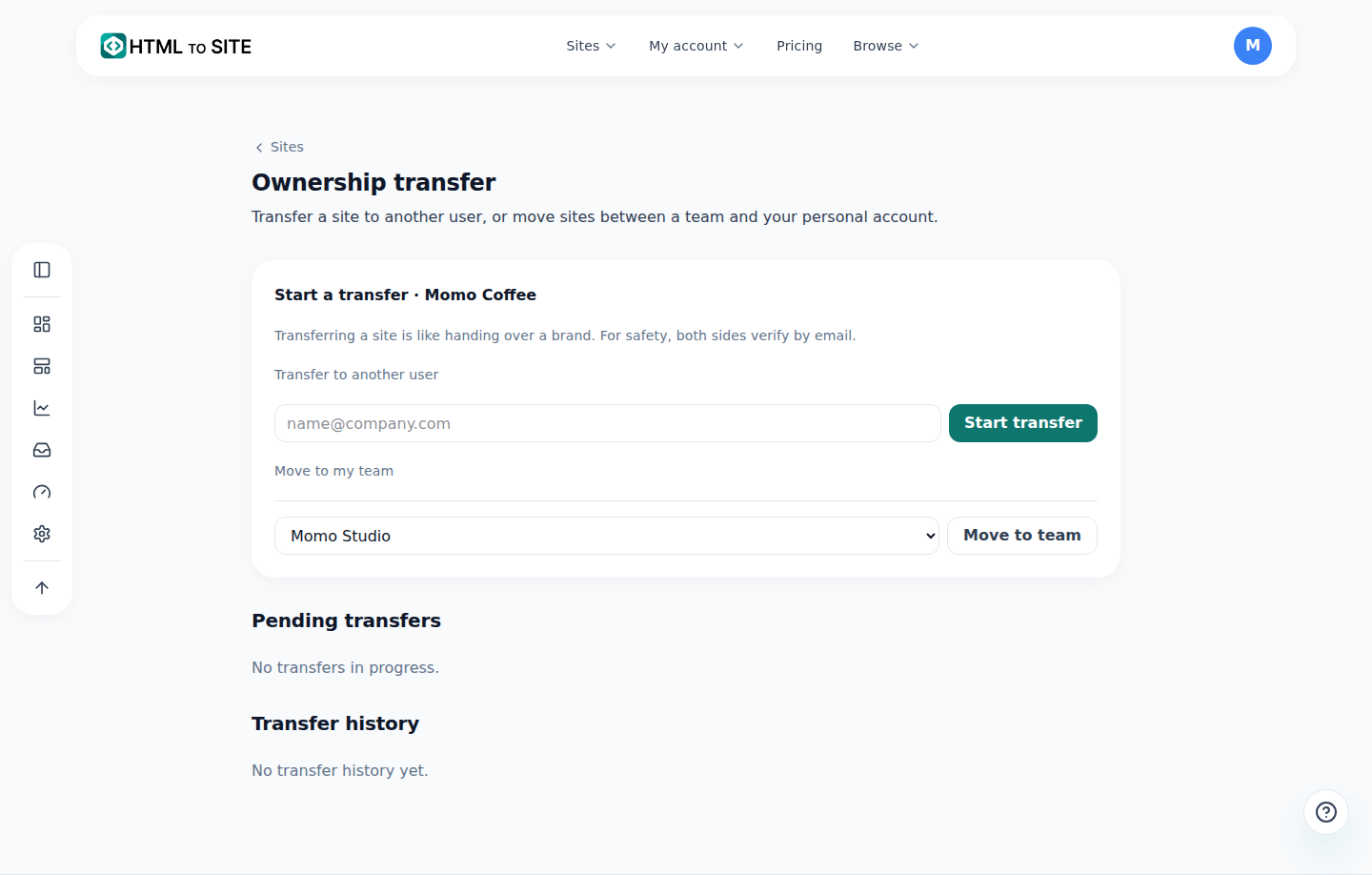
Enter the recipient's email and press “Start transfer” to begin the confirmation steps.
Frequently asked questions
Can I download my site on the free plan?
Yes — downloading works on every plan. On a team site, a role may have the download locked.
If I switch to another service later, can I take my site with me?
Yes. The ZIP contains every site file, so you can carry it over as is. Anything that needs a server — contact forms, boards, bookings, quotes — has to be set up again at the new place.
What's the difference between the working copy and the published site ZIP?
The working copy is what's in the editor now, including edits you haven't published; the published site is what visitors see today. A site that hasn't been published only offers the working copy.
Can I also download the messages people sent through my contact form?
Yes — the inquiries screen lets you download them separately as a CSV, with the messages you keep, whatever your plan. The site ZIP doesn't contain them.
Does downloading remove my site from MakeLayer?
No. Downloading just gives you a copy, so nothing changes for your site or what visitors see.
Read next
- Managing your sites — folders, rename, delete & recovery How to organize sites into folders, rename them, and undo a deletion within 7 days from the /sites dashboard (English)
- Transfer ownership — hand a site to another person or team How to transfer site ownership to another person or team — verification codes, consent, and the 24-hour cooling-off window (English)
- Restoring an old version — publishes, backups, and rollback How to restore an earlier published version from Settings › Versions in the editor, and undo a restore if needed (English)
- You already have an HTML file. Here's how to put it online. Step-by-step guide to publishing an existing HTML file on a real address for free, no server needed (English)
Trying it is faster than reading about it — create your site now, free.