
Inject code into head and body
Last updated: 2026-10-12
Short version — in the editor, open “Settings” and go to “Code snippets,” paste what you want into the head and body boxes, and save. It's merged in automatically whenever a visitor requests the page. Your original HTML file is never touched, and this is available from the Pro plan.
At a glance
- Time needed
- About 3 min
- Plan required
- Pro
- Coding knowledge
- A little
- Where to do it
- Editor
Step by step
- 1
Open “Settings → Code snippets” in the editor
In the editor's site menu, open “Settings” under “Site settings” — after Branding, Search consoles, and App (install) comes the “Code snippets” section. On free and Plus, it just shows a lock notice with the input disabled. It unlocks starting on the Pro plan.
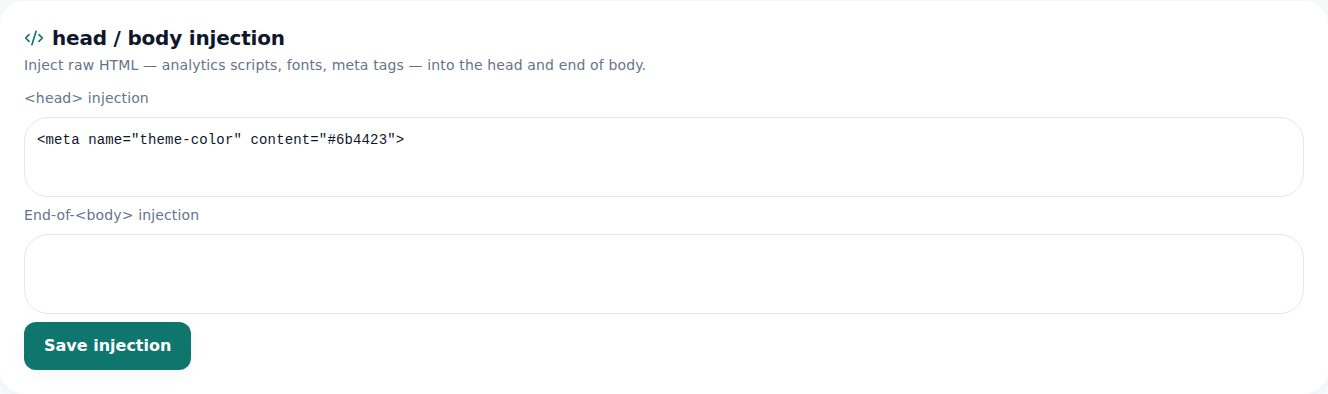
What you put here lands in the same spot on every published page. - 2
Paste something into head
Anything that belongs inside head — structured data (JSON-LD) is the classic case — goes straight in as-is. Here's a short example for a page like Momo Coffee: a script tag with facts like the shop's name as JSON, so search engines and AI can read exactly what the page is about.
head injection Copy<script type="application/ld+json">{ "@type": "CafeOrCoffeeShop", "name": "Momo Coffee"}</script> - 3
Paste something into body
Code that belongs in body — an analytics tag, say — goes into the separate body box. Head and body are split because different services expect their script in one or the other; just follow whatever the snippet's instructions say.
body injection Copy<script> console.log("analytics loaded");</script> - 4
Save it — it's merged in automatically when visitors load the page
That's it once you save. This code isn't written into your original HTML file — it's stored separately and merged into head/body the moment a visitor requests the page. That's why it never shows up if you open the editor's “Code” tab (which shows your original file), and the AI edit assistant doesn't touch it either — it's a separate store. Each slot, head and body, holds up to 20,000 characters.
Settings › Code snippetsHead character limit 20,000Body character limit 20,000Original HTML file UnchangedApplied Auto-merged on each visitor request
Frequently asked questions
Can I use this on the free or Plus plan?
No, it's available from the Pro plan and up.
Does the code I paste here get saved into my original HTML file?
No, it's stored separately and only merged in when the page is served. It won't show up in the editor's Code tab.
Is there a character limit?
Yes, up to 20,000 characters each for head and body.
Can the AI edit assistant change this content?
No, it's a separate store, so it isn't something the AI edit assistant touches.
What can I put in here?
Anything that belongs in head or body — analytics scripts, structured data (JSON-LD) — you paste it in as-is.
Read next
- How to check who's visiting your site How to read visitor analytics in the editor's Analytics tab — what each plan tier shows (English)
- Get your site found — by search engines and AI answers alike How to get a published site found by search engines and AI answers (AEO) — from Branding settings to structured data (English)
- Make your site installable as an app (PWA) How to make a published site installable on visitors' phones as an app (PWA) — Team Plus plan and up, one primary address only (English)
- Changing your plan or canceling — what happens, and when How to upgrade, downgrade, and cancel a subscription from the Plan page — upgrades are immediate, downgrades and cancellations wait for the next billing date (English)
Trying it is faster than reading about it — create your site now, free.